
How to use Apple Pay and Google Wallet with South African banks in 2026
Paying with your phone is normal life now, but not every setup works the same way. This is how Apple Pay and Google Wallet fit into South African banking in 2026.
🔴 You might also like to read:
 Liz Thorne
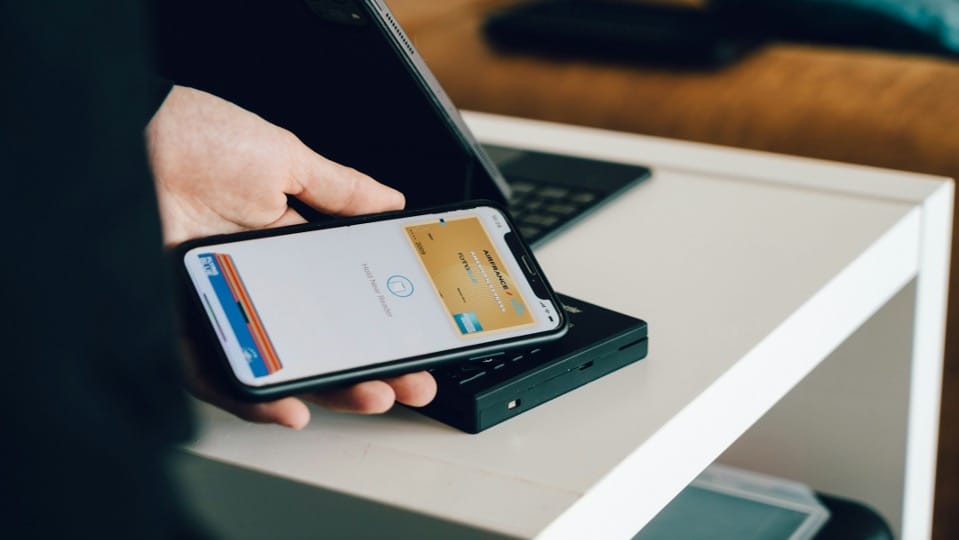
If you’re tapping your phone at the till, you’re not living in the future. You’re living in South Africa, where payments are getting more “phone-first” by the year, from cards to new QR payment upgrades at the counter.
The only catch: the more “one-tap” your life gets, the more scammers bet on you being distracted. That’s why the best digital wallet setup is half convenience, half “I’m not getting played”, especially when urgency is the scam.
Apple Pay vs Google Wallet: what you’re setting up
Apple Pay can be found on the Apple Wallet app on iPhone/Apple Watch (and can work online and in apps too).
Google Wallet is Google’s wallet app on Android (and works for tap-to-pay, plus other wallet stuff like passes, depending on your phone and region).
Both use card tokenisation (your real card number isn’t what merchants see), and both still rely on your bank saying “yes” to that card being added.
You’re not “changing banks” to use a wallet. You’re changing how your existing card can be used at checkout
Which South African banks support Apple Pay in 2026?
Apple’s official list for South Africa shows that these issuers support Apple Pay: Absa, Bank Zero, Capitec, Discovery, FirstRand (FNB/RMB), Investec, Nedbank, Shyft (Standard Bank-backed), and Standard Bank.
Which South African banks support Google Wallet in 2026?
Google Wallet’s “supported payment methods” list for South Africa includes Absa, Bank Zero, Bidvest Bank, Discovery Bank, FirstRand, Investec, Nedbank, Standard Bank, TymeBank, plus a couple of issuer names you may recognise from legacy branding on some cards (Bankorp, Volkskas).
What you need before you start
- For Apple Pay: an iPhone (or Apple Watch) with Apple Wallet, and a supported card from a participating SA issuer.
- For Google Wallet: an Android phone with NFC (Near Field Communication) switched on, and a supported card from a listed issuer.
- A stable verification route: banks will most likely verify via app prompts, SMS OTP, call centre, or in-app approval (varies by issuer/card).
How to set up Apple Pay (South Africa)
- Open Wallet on your iPhone.
- Tap Add (the “+”).
- Scan your card using your phone's camera, or enter the details manually.
- Follow your bank’s verification steps (this part differs by issuer).
- For Apple Watch: open the Watch app → Wallet & Apple Pay → Add card (or add it on iPhone and mirror it).
If Apple Pay refuses to add your card
- Confirm your bank appears on Apple’s SA list.
- Check whether the specific card is supported (some banks restrict certain products).
- Update iOS, restart, try again, then contact the number on the back of your card if it still fails.
How to set up Google Wallet (South Africa)
How to set up Google Wallet (South Africa)
- Install/open Google Wallet.
- Tap Add to Wallet → Payment card.
- Scan your card or enter the card details manually.
- Confirm verification with your bank. Google’s help page is blunt for a reason: your bank decides whether a card works.
- Turn NFC on (Settings → Connections / Connected devices → NFC, wording depends on phone).
If Google Wallet says “not supported”
- Your phone might not support NFC (common on budget devices).
- The bank might support Google Wallet, but your specific card product might be blocked.
- Your Google Wallet country/region settings might be mismatched if you imported the phone or changed region settings.
Using it in-store, online, and in apps
In-store tap-to-pay
- Unlock your phone/watch.
- Hold it near the card machine.
- Follow prompts (biometrics or device PIN).
Online and in-app
Many checkout pages support Apple Pay / Google Pay buttons directly. Where you see that button, the wallet method is treated like a card payment, but with device-based authentication.
If the terminal supports contactless card payments, your phone payment usually works as well. When it fails, it’s rarely “the wallet is broken” and usually “the terminal is ancient” or “the card type isn’t allowed on that merchant account.”
Fees and limits: what changes (and what doesn’t)
Apple Pay and Google Wallet generally don’t add a new fee for you as the shopper; your bank card pricing and merchant card fees will be added behind the scenes, the same way they do with tapping or swiping your card.
Any limits you reach (tap limits, online transaction rules, blocked merchant categories) are normally bank/card rules, not “wallet rules”.
Security rules that matter in South Africa
- Treat unexpected OTP requests like a flashing warning sign. If you didn’t start the action, you don’t approve the action.
- Use a screen lock + biometrics. A wallet on an unlocked phone is a donation programme waiting to happen.
- Turn on bank notifications for card transactions to spot weird transactions quickly.
- If your bank offers device-binding / in-app approvals, use that route where possible.
Quick troubleshooting checklist
- Wallet works at some shops, fails at others: terminal issue or merchant settings. Try a different till or store.
- Card adds, but payments fail: check contactless limits, card restrictions, or bank security flags.
- New phone: you may need to re-add cards, re-verify, and set the new phone as the default payment device.
- Lost phone: use your Apple ID / Google account device controls and call your bank to block the token/card immediately.
The simplest setup for most people
- Add one debit card and one credit card (if you use one).
- Set a default card for tap-to-pay.
- Switch on transaction alerts.
- Use the wallet, then forget it exists until checkout — that’s the whole point.
When South Africa finally treats digital payments like normal life (not a “tech feature”), the winners won’t be the fanciest setups, but those who pay fast and spot scams faster.
🔴 You might also like to read:
 Liz Thorne
Comments ()